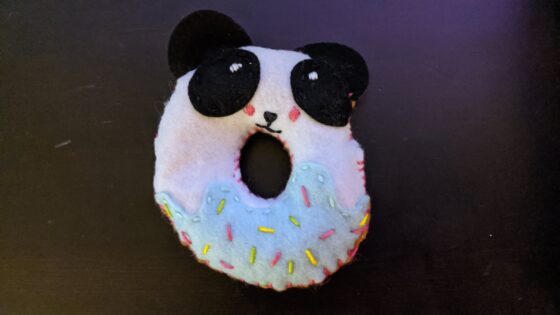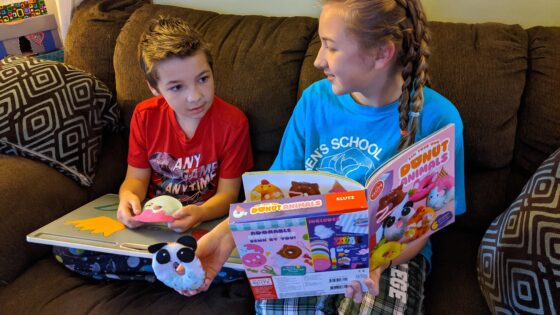
This morning when Eva and I came home from Church I was taking trash from my car including an empty 200 count Tic-Tac box. Eva saw it and she wanted it for a project. I was skeptical but she said that she had a broken pencil sharpener and figured that this would replace that. She planned to take the broken piece and hot glue it to the opening of the Tic-Tac box. That way the pencil shavings will be collected within the box. She then said that she would decorate it and then make a video all about it. I was proud of how she wanted to make this item. She made the video before Allison came home to help he with the hot glue so she helped me make my daily vlog and we inserted her video inside of that.
Tonight I took Allison to the restaurant, Scorpion. It was a nice place with a Mexican theme. The food was delicious and I had the first Margarita that I’ve had in a very long time. It was also the first date night in a long time, too. The kids enjoyed some time with one of their favorite babysitters.
I attended my second Boston Media Makers event yesterday. It was a good session with many great ideas from some really interesting people. While I was there I got to meet Jacqueline Carly (@Fitarella) and she sat down with me for 10 minutes to record a video interview for Road To Thin. She has a show on The Pulse Network and is doing some really great stuff. When I got home and started editing the video my home desktop malfunctioned so I had to deal with that. I’ll get the video up over at Road To Thin soon. Continue reading Boston Media Makers January 2011→
Many comments that I get from new I’m Not A Famous Blogger Crew Members and non-crew members alike have to do with getting their blogs added to SocialSpark and having them approved. There are a few places to get this information and while the information is sound I don’t think it covers it quite like this little tutorial will. So strap in because this SocialSpark Saturday post is Double Sized
Adding your Blog to SocialSpark
First off you need to sign into SocialSpark and mouse over the Account tab.
Next you will get a drop down menu of options. Choose Manage Blogger Account and Click it.
From here you are going to want to click on the Blogs field in the middle of the screen.
This will bring you to a list of your blogs (if you’ve already entered any). There is a link “Add Blog” Click it.
Now you are on the add blogs page. There is much to fill out here.
Click Submit at the bottom of the page and that’s it, you have now added your blog.
Are you ready to claim it and submit it for approval…
Sure you Are!
LET’S DO IT!
Claiming your blog
Assuming that you follow my instructions above and you added your blog to the SocialSpark network then you are ready to claim your blog. It is pretty easy to do this.
Take a Look at your blog status. You will most likely see three red X’s. This means that you have not claimed your blog. You can find out more about why you need to claim the blog by clicking the “?” next to Claim Your Blog. This is what you will see when you click the “?” next to Claim Your Blog.
“Before you get your blog approved, we need to verify that you really are the owner. We have not yet verified that you own your site. Click the Get Code button to grab the code, place it on your site either before the closing HEAD tag or somewhere between the BODY tags. Then click Refresh here to run the verification script. Once you’ve claimed the site once, you can remove the claim code (Not ITK) from your site.“
The Second red X means that you have not installed the IZEA Tool Kit (ITK), you’re going to need to do this as well. Why? Here is the explanation that you see when you click the “?” next to Install ITK.
“The IZEA ToolKit (ITK) is a suite of tools that maximizes what you can do in the IZEA Network. After you place a piece of Javascript code on your website, we begin collecting statistics that gives you a RealRank and allows you to use other network features such as PPP Direct and SocialSpark Blog Sponsorships.“
We need to take care of the first two red X’s before we can tackle #3. To do this we are going to have to tackle code. Don’t worry it is not difficult at all. Click the Get Code button. The screen will darken and a new screen will appear with three boxes of code. You should only see three boxes if code is missing from your blog. So the first time you install code you will see a box of missing code that has both of codes from the second and third boxes (So you don’t have to copy and past code from each of the boxes. That would be redundant.). Just install the missing code anywhere between the < body > tags in your blog html code.
This might seem scary to some but it really is not. Working with the code is not that difficult. These instructions are for Blogger. Start with signing into your Blogger account. You should default to your Settings Screen. From Settings click Layout.
You are now looking at the layout of your blog. You might be tempted to create an HTML/Javascript gadget and put the ITK and Claim code there. DON’T DO IT! You’re going to have to delve a little deeper. Click Edit HTML.
Now you are in the Edit HTML area. You might be tempted to post your code in the code box right away. Again you have another step. You need to click Expand Widget Templates. That way the complete code of your blog is now in the Edit Template Box.
Your screen will refresh and that lets you know that you’ve Expanded the Widget code and you should now see a check mark in the Expand Widget Code box. Click the scrollbar and scroll to the bottom of your code.
Now you are at the bottom of the code box, paste in the code from SocialSpark directly above the < / body > tag. Then click Save Template.
Now go back to the My Blogs page of SocialSpark and you are going to test to see if the code was added correctly (it had better be if you followed these directions). Start off by clicking the Refresh button. A spider will go out and check your code to see if the claim code is installed. If it is your red X will turn to a green checkmark. Please note that the ITK installed might not go to a green check right away. That is okay, give it a little while and click refresh again.
Once your blog status has two green checks like the one below you are ready for the last step. The most important step.
Submit your Blog for Verification
Once you have claimed your blog and added the IZEA Tool Kit to it you are ready to submit for verification and approval… or are you? Review the qualifications for having an approved blog first. This is from the Terms of Service.
“”Verified Blog”.
A blog that has been Claimed, and also meets these additional requirements:
1. Blogs Only. SocialSpark only accepts blogs, and not websites, message boards, e-mails, IM or other similar services.
2. English or Spanish Only Blogs. The blog and all posts relating to SocialSpark Opportunities must be in the English or Spanish language.
3. Original Blog Content. The blog must contain original editorial content in addition to Opportunity-related or other paid posts. Blogs that exist primarily for payment will not be accepted.
4. Appropriate Content. Blogs submitted to the marketplace may not include or support: excessive profanity, violence, or racial intolerance, illicit drugs or drug paraphernalia, pornography, adult or mature content, or any other content that promotes intolerance, illegal activity, or infringes on the legal rights of others.
5. Minimum Blog Age. Blogs must be live for a minimum of ninety (90) days, counted from the date of the blog’s first post, with at least twenty (20) pre-existing posts written in the 90 days prior to registration with the SocialSpark Marketplace.
SocialSpark will not accept certain blogs and Bloggers as determined by SocialSpark in its sole discretion.”
If your blog fits those qualifications and you are ready to go then it is time to submit your blog for Verification.
To do this you must click the Get Verified link under Blog Status.
That’s it, you do that and you are done, now you wait for Customer Love to check out your blog, a manual process to make sure that quality blogs are approved, and let you know that you are approved to take opps in the system. Your blog status should look like this.
Now start earning some money!
I am an IZEA Insider and my crew is called the “I’m Not A Famous Blogger” Crew and I want YOU to join me. Here are simple instructions on how exactly you can join my IZEA Insider Crew on SocialSpark.
Somewhere along the way Eva picked up the phrase Oh My Gosh! She is very emphatic as she says it too. We’re not sure who actually gave her that one but she is loving it and she was entertaining quite a few people at our friend Jen’s party tonight.
Today was a busy one for us. We started out with a little Blue’s Clues as this is Eva’s new favorite thing. Thank goodness for Noggin on Comcast on Demand. I’ve gotten into watching Blue’s Clues too. I love it when Eva says “Ska-doo”. We watched for a bit and then I mowed the lawn. Finished that up and we walked down to the North Attleboro Farmer’s Market that happens in our town every Saturday from 9-12 in front of Community School. I really like that there is a quick little place that we can go to on a Saturday morning as a family and purchase very fresh vegetables and other foods. There is a blog too for the Farmer’s Market, way to use new technology to help with a traditional style program.
On the way back we stopped at a new market in town. They have great falafel and gyros. Allison stops there for those once in a while and I like to see new businesses in town succeed. While there we picked up a gyro and also some Turkey Hill Ice Cream. This was a Limited Edition flavor that is something that is so simple that it should have been made so long ago. A mocha based ice cream with cookie dough and cookies and cream, fantastic! I had some of that tonight and yeah it was fantastic. Does Turkey Hill have an opening for a blogger taste tester? I’ll throw my hat in the ring!
Then it was time to get some things done for Affiliate Summit East. I was in dire need of Business Cards so the other day I tried making some online at FedEx Kinkos. I saw that I needed to get a rush on the cards in order to get them to me on time for the conference. So I figured that I go to an actual FedEx Kinkos shop and see if I can get the business cards printed today. The local FedEx Kinkos near me does not print anything. Nothing. They have a kiosk where you can design your own business cards and other things that are sent to a place where they print them all and ship them to you or to the store. So I went to the kiosk and tried to upload the business card that I had designed on the computer in the proper size, or so I thought. I ended up going with editing a design that they had but I did get my photo on it as well as my logo on the back. With all the little extras and the rush I ended up having to overpay a bit. So I guess I should have planned better. Here are the two designs that I was thinking of doing but didn’t end up able to use them. Let me know what you think of the designs that didn’t make it.
. This is the final one, however it is just the proof on yellow paper.
You’ll have to come visit me at Affiliate Summit 2009 and get one. The front has a nice blue on it and uses blue and black writing. The back is black and white.
I got back to the house and there was a message from the Hilton that I’ll be staying at for Affiliate Summit. I looked closer at the reservation and realized that I had made it for August 8 – 11 that meant that I’d be going down on Saturday and back on Tuesday. That won’t do. I’m heading down Sunday. If I headed down to Affiliate Summit on Saturday I’d miss the annual Wing Off. And believe me I am not missing a Wing off! So I made the change and saved a boatload of money. So happy about that because the business cards are going to set me back and then I’ve decided to take the train from Providence to New York’s Penn Station to get to Affiliate Summit. The fare is only $117.00 and I decided that train was better than driving. I get 3 hours down and 3 hours back to get things worked on. I’m pretty sure I’m going to save money and sanity over driving and using the valet.
So on to tonight. This evening we had a good time having dinner with our friend Beth. We had the corn on the cob that we got at the Farmer’s Market as well as the lettuce, tomatoes and cucumber. It was delicious. We did make a good choice buying the food locally. We’ll try and get there more often.
After dinner we headed over to our friend Jen’s for a little party. Eva of course charmed everyone and I got to talk to quite a few people about blogging and the upcoming trip. I met a guy who works for GyPSii, which is a mobile app for updating where you are and what you are doing. We talked together about Utterli, Zannel and Radar.net. It was a very interesting conversation and I’ve signed up for GyPSii which is apparently huge in China and is starting to catch on here.
After talking with that guy I talked with another guy who was really interested in my camera. We talked about my Photo-A-Day project and how he did paranormal investigations and debunked photos of suspected paranormal sightings. We also talked about how something small mentioned on the blog can become something really big, for example, Fry Sauce is something I mentioned on the blog once and then I did a contest and now I get comments occasionally on the Fry Sauce posts. It was pretty fun to talk with these new folks. I’m really getting geared up to meet new and exciting people next week and dusting off the rust on my conversational skills was just the thing I needed to get ready.
When I got home from the party (I took Eva home early) My tickets to the Market Leverage Yacht Party were waiting for me. Thank you Dina Riccobono
This is a partial reprint of my previous post on How To Add Your Blog to SocialSpark on June 13, 2009. I’m Not A Famous Blogger Crew Member Veronica Thomas of V for … has provided me with screenshots and instructions for adding your TypePad blog to SocialSpark.
Many comments that I get from new I’m Not A Famous Blogger Crew Members and non-crew members alike have to do with getting their blogs added to SocialSpark and having them approved. There are a few places to get this information and while the information is sound I don’t think it covers it quite like this little tutorial will. So strap in because this SocialSpark Saturday post is Double Sized (I missed last week so I’m making up for it.)
Adding your Blog to SocialSpark
First off you need to sign into SocialSpark and mouse over the Account tab.
Next you will get a drop down menu of options. Choose Manage Blogger Account and Click it.
From here you are going to want to click on the Blogs field in the middle of the screen.
This will bring you to a list of your blogs (if you’ve already entered any). There is a link “Add Blog” Click it.
Now you are on the add blogs page. There is much to fill out here.
Click Submit at the bottom of the page and that’s it, you have now added your blog.
Are you ready to claim it and submit it for approval…
Sure you Are!
LET’S DO IT!
Claiming your blog
Assuming that you follow my instructions above and you added your blog to the SocialSpark network then you are ready to claim your blog. It is pretty easy to do this.
Take a Look at your blog status. You will most likely see three red X’s. This means that you have not claimed your blog. You can find out more about why you need to claim the blog by clicking the “?” next to Claim Your Blog. This is what you will see when you click the “?” next to Claim Your Blog.
“Before you get your blog approved, we need to verify that you really are the owner. We have not yet verified that you own your site. Click the Get Code button to grab the code, place it on your site either before the closing HEAD tag or somewhere between the BODY tags. Then click Refresh here to run the verification script. Once you’ve claimed the site once, you can remove the claim code (Not ITK) from your site.“
The Second red X means that you have not installed the IZEA Tool Kit (ITK), you’re going to need to do this as well. Why? Here is the explanation that you see when you click the “?” next to Install ITK.
“The IZEA ToolKit (ITK) is a suite of tools that maximizes what you can do in the IZEA Network. After you place a piece of Javascript code on your website, we begin collecting statistics that gives you a RealRank and allows you to use other network features such as PPP Direct and SocialSpark Blog Sponsorships.“
We need to take care of the first two red X’s before we can tackle #3. To do this we are going to have to tackle code. Don’t worry it is not difficult at all. Click the Get Code button. The screen will darken and a new screen will appear with three boxes of code. You should only see three boxes if code is missing from your blog. So the first time you install code you will see a box of missing code that has both of codes from the second and third boxes (So you don’t have to copy and past code from each of the boxes. That would be redundant.). Just install the missing code anywhere between the < body > tags in your blog html code.
This might seem scary to some but it really is not. Working with the code is not that difficult. These instructions are for TypePad. Start with signing into your TypePad account and going to Weblogs.
You will then need to go into the Design section of your blog.
And then you will go into the Content Section.
Once in Content, scroll to the bottom and check the Blog Footer box and then click on the Pencil icon
You will then receive a ‘pop-up’ – type SocialSpark in the Title bar and then the copied URL in the URL box. Click Save
Then click ‘Save Changes’ at the bottom of the page
Now you are back on the My Blogs page of SocialSpark and you are going to test to see if the code was added correctly (it had better be if you followed these directions). Start off by clicking the Refresh button. A spider will go out and check your code to see if the claim code is installed. If it is your red X will turn to a green checkmark. Please note that the ITK installed might not go to a green check right away. That is okay, give it a little while and click refresh again.
Once your blog status has two green checks like the one below you are ready for the last step. The most important step.
Submit your Blog for Verification
Once you have claimed your blog and added the IZEA Tool Kit to it you are ready to submit for verification and approval… or are you? Review the qualifications for having an approved blog first. This is from the Terms of Service.
“”Verified Blog”.
A blog that has been Claimed, and also meets these additional requirements:
1. Blogs Only. SocialSpark only accepts blogs, and not websites, message boards, e-mails, IM or other similar services.
2. English or Spanish Only Blogs. The blog and all posts relating to SocialSpark Opportunities must be in the English or Spanish language.
3. Original Blog Content. The blog must contain original editorial content in addition to Opportunity-related or other paid posts. Blogs that exist primarily for payment will not be accepted.
4. Appropriate Content. Blogs submitted to the marketplace may not include or support: excessive profanity, violence, or racial intolerance, illicit drugs or drug paraphernalia, pornography, adult or mature content, or any other content that promotes intolerance, illegal activity, or infringes on the legal rights of others.
5. Minimum Blog Age. Blogs must be live for a minimum of ninety (90) days, counted from the date of the blog’s first post, with at least twenty (20) pre-existing posts written in the 90 days prior to registration with the SocialSpark Marketplace.
SocialSpark will not accept certain blogs and Bloggers as determined by SocialSpark in its sole discretion.”
If your blog fits those qualifications and you are ready to go then it is time to submit your blog for Verification.
To do this you must click the Get Verified link under Blog Status.
That’s it, you do that and you are done, now you wait for Customer Love to check out your blog, a manual process to make sure that quality blogs are approved, and let you know that you are approved to take opps in the system. Your blog status should look like this.
Now start earning some money!
I am an IZEA Insider and my crew is called the “I’m Not A Famous Blogger” Crew and I want YOU to join me. Here are simple instructions on how exactly you can join my IZEA Insider Crew on SocialSpark.
Occasionally I get questions from members of the “I’m Not A Famous Blogger” IZEA Insider Crew and sometimes they are just perfect for answering on a SocialSpark Saturday post. So with permission and little patience I asked the person who asked this question below if I could save the answer till today. Here is the question.
“don’t have any idea what I am doing. I tried a CPC today and I am not sure if I did it right. I copied the cost and posted it on my twitter page. I guess what I need is a tutorial. Is there somewhere I can find this information or can you help me? I appreciate any help you can offer.”
I’m going to assume that this person mean “code” instead of “cost”. So let’s start from the beginning. If you recall from my post “How Do I Make Money From SocialSpark” post on July 4th I talked about the different ways in which a user can make money with SocialSpark. One such was is through CPC or (Cost Per Click) opportunities. Usually the cost per click is anywhere from .11 a click to .68 a click. Here is what I said about Cost Per Click in that post.
“… the Cost Per Click opportunities give you various Ad units to use. However with Cost Per Click you are paid when someone clicks the link that you post through your blog, Twitter, or Facebook. You can do a pretty decent amount of money by posting a few links in various places.”
How do you do this right?
I find CPC to be one of the easiest ways of making a little money on SocialSpark because of the simplicity of what your readers need to do. All they need to do is click. You have various ways to get them to do this. Let’s Take a Look at one of the CPC opps from SeaWorld. This one has been pretty good to me without me doing much at all. That is a great thing about CPC opps because you can be active or passive.
Here is the typical CPC Opp screen.
CPC Opp Screen
Let’s break this down to the components. First is the offer detail area. This is where the advertiser tells you about the campaign and offers you ideas about why readers would like to click the links or visual ad units.
CPC Description
The next section is the Additional Info section. This is where you see what you will be paid per click, the landing page, what you have made so far, how many people have seen your links and so on. Take a look and I’ll break that down too.
CPC Additional Info
If we go from left to right you can see first Conversion info. This tells the blogger the name of the campaign, how much each click is worth and gives a link to the landing page. As we move across the image we see the Opportunity Stats section. This section tells you the start and stop dates of the campaign. The stop date is subject to change. A couple reasons for the stop date to change would be if the campaign runs out of money or if the campaign goals are achieved. Below that there may be additional requirements, for instance this opp is for English only blogs. Then there are other requirements like RealRank and blogger location. Advertisers can use blogger demographics to help target the area where the blogger’s readers are most likely from.
The section at the far right is where you see your conversion stats. As you can see I’ve made little under $5.00 in this campaign so far. Below that I can see how many people have viewed the links I have posted and how many people have actually clicked. Below that are invalid clicks. SocialSpark uses Click Forensics to determine if clicks are valid or invalid. This was a bit dodgey early on and many clicks were seen as invalid especially on Twitter. This has since become much better and more accurate. Below the invalid clicks is the area of Pending. These are clicks that will most likely convert to accurate clicks.
So, how do you get the links so people can start clicking? That is where the next section, Ad Units comes in. The Ad Units section is where you can see the types of valid links that the advertiser has made available. In this case SeaWorld has decided to use a Text Link, Twitter, Facebook, A Leaderboard (Great for RSS Feed), and a Larger Ad Unit box. Also at the bottom is the Disclosure Badge. Take a look at this close up. Notice that the Leaderboard is what has generated me the most clicks so far.
CPC Ad Units
With the Text Link there are two ways to use Text Link in your posts. You would click the Get Code button on the far right and a screen will pop up.
Did you notice that the first link looks a little odd. There is space all around it. I cannot figure out if I need to set my CSS to make that look normal or if that is because of the tracking image. I generally don’t take option one because of that very design issue. If anyone can help me make those look better I’d certainly use the link with view tracking embedded more often.
The next type of Ad Unit for this campaign is the Twitter One. When you click the Get Code button a screen pops up with the code for you to copy and paste into your tweet.
SocialSpark Get Code for Twitter Link
As you can see there is a very important message to this Get Code. Each tweet must have the #spon tag that discloses that the tweet is a sponsored tweet. Blogging or Tweeting or Facebooking without disclosure is against the SocialSpark Code of Ethics.
My personal take is don’t forget to disclose on every thing. If you do not disclose then you are deceiving your audience and making SocialSpark look bad. SocialSpark is for the ethical blogger please be aware of how you are a representative of SocialSpark in your blogging, tweet, etc.
So what does a tweet look like with the code and #spon tag in it.
Example of a Sponsored Tweet
So you can see that I put my own personal spin on the campaign and I made sure to put the #spon hashtag plus the link for the Get Code box. This sort of campaign is very similar to the one that you can do for Facebook. You can click the Get Code button for a Facebook link and a box will pop up with the correct link code.
SocialSpark Get Code for Facebook Link
You take that link and then post it into facebook. You will be presented with a catchpa (sp) to determine that you are not a robot. From there you have write your post and with facebook you have more space to get your message across. Depending upon the link you might even be able to choose a thumbnail. Remember that #spon tag in Facebook as well. Here is an example of adding a sponsored link into Facebook. I had to use another campaign, this one for the Rock Band Alaska.
Posting a Sponsored Link on Facebook
Other Ad Units are more visual and they can be many different sizes, for example if you see the top right hand side of my blog you will see some 125 X 125 ads, these are everywhere and they could be CPC, CPA, or Affiliate links. In this campaign that I’m talking about with SeaWorld they have decided to use the Leaderboard size which, as I stated earlier is great for your RSS feed. I use the Plug in RSS Footer. This lets me swap out different campaigns at the bottom of my feed. I make sure that I disclose on this as well. I state “Do you Like BenSpark.com? Help support it by supporting my sponsors.” This gets a few clicks here and there and for this particular SeaWorld opp it has done very, very overall. Here is an example of of my RSS Feed Footer.
My RSS Feed Footer
And to get the code for each of these visual ad units once again you click the Get Code button on the right hand side. Each visual unit will tell you the dimensions of the image so you know where to post it on your blog. Just copying and pasting this code into your blog posts is very easy. Here is an example of what the copy code pop up looks like.
SocialSpark Ad Unit Codes
And this is an example of one of the visual Ad Units for the SeaWorld & Busch Gardens & Aquatica CPC campaign.
Probably the most important thing with each of these campaigns is disclosure and if you are writing a blog post about a particular campaign like I am right now you are going to use a SocialSpark Disclosure Badge. I have one at the bottom of this post. You can easily chose the color of the badge that you’d like to use. Here is an example of what the code box for that looks like. See how you can select the color from the drop down menu and then copy the code.
Social Spark Disclosure Badge Code
So that is it, that is how to use the CPC opportunity on SocialSpark. This of course is a simple way to use the campaigns. “I’m Not A Famous Blogger” IZEA Insider Crew Member DragonBlogger has done a pretty successful CPC campaign that he details in his post Most Successful SocialSpark CPC To Date. He takes this instructional post and goes way beyond in how to effectively make money from a CPC campaign.
Many comments that I get from new I’m Not A Famous Blogger Crew Members and non-crew members alike have to do with getting their blogs added to SocialSpark and having them approved. There are a few places to get this information and while the information is sound I don’t think it covers it quite like this little tutorial will. So strap in because this SocialSpark Saturday post is Double Sized (I missed last week so I’m making up for it.)
Adding your Blog to SocialSpark
First off you need to sign into SocialSpark and mouse over the Account tab.
Next you will get a drop down menu of options. Choose Manage Blogger Account and Click it.
From here you are going to want to click on the Blogs field in the middle of the screen.
This will bring you to a list of your blogs (if you’ve already entered any). There is a link “Add Blog” Click it.
Now you are on the add blogs page. There is much to fill out here.
Click Submit at the bottom of the page and that’s it, you have now added your blog.
Are you ready to claim it and submit it for approval…
Sure you Are!
LET’S DO IT!
Claiming your blog
Assuming that you follow my instructions above and you added your blog to the SocialSpark network then you are ready to claim your blog. It is pretty easy to do this.
Take a Look at your blog status. You will most likely see three red X’s. This means that you have not claimed your blog. You can find out more about why you need to claim the blog by clicking the “?” next to Claim Your Blog. This is what you will see when you click the “?” next to Claim Your Blog.
“Before you get your blog approved, we need to verify that you really are the owner. We have not yet verified that you own your site. Click the Get Code button to grab the code, place it on your site either before the closing HEAD tag or somewhere between the BODY tags. Then click Refresh here to run the verification script. Once you’ve claimed the site once, you can remove the claim code (Not ITK) from your site.“
The Second red X means that you have not installed the IZEA Tool Kit (ITK), you’re going to need to do this as well. Why? Here is the explanation that you see when you click the “?” next to Install ITK.
“The IZEA ToolKit (ITK) is a suite of tools that maximizes what you can do in the IZEA Network. After you place a piece of Javascript code on your website, we begin collecting statistics that gives you a RealRank and allows you to use other network features such as PPP Direct and SocialSpark Blog Sponsorships.“
We need to take care of the first two red X’s before we can tackle #3. To do this we are going to have to tackle code. Don’t worry it is not difficult at all. Click the Get Code button. The screen will darken and a new screen will appear with three boxes of code. You should only see three boxes if code is missing from your blog. So the first time you install code you will see a box of missing code that has both of codes from the second and third boxes (So you don’t have to copy and past code from each of the boxes. That would be redundant.). Just install the missing code anywhere between the < body > tags in your blog html code.
This might seem scary to some but it really is not. Working with the code is not that difficult. These instructions are for the self-hosted WordPress platform (honestly you really should have your own domain name and hosting and use WordPress, I cannot stress this enough.). Go to your dashboard of your blog. Click on Editor under Appearance.
This brings you to the theme editor where you can edit specific portions of the html of your blog theme. You are most likely looking for the header or footer files. The header has the open BODY tag and the footer has the close BODY tag. The code from SocialSpark needs to go after the open BODY tag and before the close BODY tag. Highlight and copy the code from SocialSpark. Go to your theme and paste this code. Then save the file and return to SocialSpark.
Now you are back on the My Blogs page of SocialSpark and you are going to test to see if the code was added correctly (it had better be if you followed these directions). Start off by clicking the Refresh button. A spider will go out and check your code to see if the claim code is installed. If it is your red X will turn to a green checkmark. Please note that the ITK installed might not go to a green check right away. That is okay, give it a little while and click refresh again.
Once your blog status has two green checks like the one below you are ready for the last step. The most important step.
Submit your Blog for Verification
Once you have claimed your blog and added the IZEA Tool Kit to it you are ready to submit for verification and approval… or are you? Review the qualifications for having an approved blog first. This is from the Terms of Service.
“”Verified Blog”.
A blog that has been Claimed, and also meets these additional requirements:
1. Blogs Only. SocialSpark only accepts blogs, and not websites, message boards, e-mails, IM or other similar services.
2. English or Spanish Only Blogs. The blog and all posts relating to SocialSpark Opportunities must be in the English or Spanish language.
3. Original Blog Content. The blog must contain original editorial content in addition to Opportunity-related or other paid posts. Blogs that exist primarily for payment will not be accepted.
4. Appropriate Content. Blogs submitted to the marketplace may not include or support: excessive profanity, violence, or racial intolerance, illicit drugs or drug paraphernalia, pornography, adult or mature content, or any other content that promotes intolerance, illegal activity, or infringes on the legal rights of others.
5. Minimum Blog Age. Blogs must be live for a minimum of ninety (90) days, counted from the date of the blog’s first post, with at least twenty (20) pre-existing posts written in the 90 days prior to registration with the SocialSpark Marketplace.
SocialSpark will not accept certain blogs and Bloggers as determined by SocialSpark in its sole discretion.”
If your blog fits those qualifications and you are ready to go then it is time to submit your blog for Verification.
To do this you must click the Get Verified link under Blog Status.
That’s it, you do that and you are done, now you wait for Customer Love to check out your blog, a manual process to make sure that quality blogs are approved, and let you know that you are approved to take opps in the system. Your blog status should look like this.
Now start earning some money!
I am an IZEA Insider and my crew is called the “I’m Not A Famous Blogger” Crew and I want YOU to join me. Here are simple instructions on how exactly you can join my IZEA Insider Crew on SocialSpark.
So I learned about a guy who made an awesome DIY today on Gizmodo (and they got the story from The Book of Joe.) His name is Jim Garlitz and he created a Water Chopper. It took him two months and $1000 to make the water chopper but man does it kick. A great little spare time project.
You might notice that this blog does not have a logo. I’ve been working on branding myself and this blog as well as all my other blogs. And without a consistent logo design across my entire network I find that things are rather disjointed. So I came across this diy logo design company called LogoYes. At LogoYes you can create a custom logo very quickly without knowing expensive and complicated design programs. For a modest fee you can generate a logo as well as download high resolution files of that logo. LogoYes has pioneered the do it yourself logo creation process and is one of the leaders in bringing this unique and simple interface to small businesses. I’ll have to take a look at this for creation of my logo to brand my network.
You might be wondering why I have a tube of tennis balls in my camera bag.
Then again you might not, I’m going to tell you why anyway.
Last week I was looking for a better way to steady my macro shots. So I searched the house for a tripod. My Dad was an avid photographer, and is becoming one again, so I figured that he may have an old tripod hanging around. I found one and it was very old. But I used it for some of the photos last week and they came out much sharper an clearer than ever before. I figured I must be on to something using a tripod.
So this past weekend I was on the Cape (Cape Cod, MA) and I went to the local Ocean State Job Lot (discount store) and picked up a $24 tripod that had many more features than my Dad’s old one, which I found out was not my Dad’s but rather, my great Uncle’s. My great Uncle loved photography as I love photography. Sure I could have used that tripod but I was looking for something just a smidge more modern.
I had read a DIY about making your tripod ready for the beach. Before I had read that post I had not thought about what could happen to my tripod if I put the feet directly on the sand. I cannot find that DIY so I am going to show you what I did.
After I got the tripod I picked up a tube of Tennis balls. Three to a package, three legs of a tripod, coincidence, I think not. I took the tripod and the tennis balls back to the house and got to work. Okay first I borrowed a utility knife from my neighbor, and then I got to work.
First things first, I took out a tennis ball.
I laid that tennis ball on a flat surface and grasped it tightly. I then took the utility knife and placed the tip in the middle of the area that I was going to cut. I slowly put the blade through till there was a release of air from inside the tennis ball. Than I then cut through the ball and made a large X or + sign (depends on how you hold the ball). It wasn’t very large. Here is what the ball looks like now.
This was the vertical cut, notice that I cut on the name of the ball. I used the name and the white rubber stripe that goes around the ball as a guide. That way I didn’t make the cuts too large. they have to be small enough to grip well.
Here is the horizontal cut.
I repeated the process with the remaining tennis balls and Then attached each to the feet of my tripod.
I then attached the remaining tennis balls to the tripod feet.
And then I was finished. Time to take this out to the beach. As you know, at the beach sand gets everywhere. So I wanted to make sure that I kept the sand off my tripod feet and prevented any sand related damage that I could. Also having the tennis balls on the feet prevents the tripod from sinking to deeply into the sand and accidentally toppling over and ruining your digital camera.
So for a couple of bucks (Around $2.50) you can help to protect and stabilize your tripod.
So what did I spend my time taking photos of on the beach?
These are two photos that I am submitting to Photo Hunters (The theme is Row) this coming Saturday.
And here are a few other interesting things I took with the telephoto/macro lens.
My Photos are hosted on Flickr and Zooomr. I created a FuelMyBlog Flickr Group and if you are on FMB please leave a comment and let me know your contact info on Flickr and I’ll get you added.
this month I am running a contest on my blog. I’m supplying the prizes and they are photography related. I’m giving away either a Flickr Pro or Zooomr Pro account for free (winners choice.) Check out BenSpark’s August Add It Up Contest on my blog The BenSpark.